Product comparison
WinZip Driver Updater vs Ashampoo Driver Updater
Both applications scan hardware drivers, present available updates and provide backup and restore tools. WinZip documents automatic update-time backups, manual backups and an exclusion list. Current Ashampoo releases also offer installation history, rollback and scheduling. Compare the steps needed to review and reverse an update.
Compare driver workflows
| Task | WinZip Driver Updater | Ashampoo Driver Updater |
|---|---|---|
| Inspecting drivers | Device-driver status and recommended updates | Installed and available driver versions |
| Update selection | Selected driver updates or Update All in the registered product | Selected or multiple driver updates |
| Saving drivers | Automatic backup during updates; manual backup of all drivers or one driver | Driver backup and restore tools |
| Returning to a version | Load a dated backup and select the drivers to restore | Installation history and rollback in current releases |
| Recurring checks | Configurable driver scan schedules | Scheduled checks and updates in current releases |
| Additional workflow | Driver Exclusion List and optional Windows restore-point creation | Direct access to Windows updates in current releases |
Which workflow fits?
Choose WinZip for its backup and exclusion workflow
WinZip Driver Updater suits reviewing a device update while retaining a manual or automatically created driver backup. Its exclusion list helps keep a deliberately chosen version out of later scan recommendations.
Choose Ashampoo around its current update and history controls
Ashampoo Driver Updater is relevant when installation history, rollback and recurring checks are useful parts of the routine. Inspect the actual release because older installations can expose different scheduling and history tools.
Compare the device identity and proposed version before choosing either workflow. A driver backup and a Windows restore point cover different recovery paths. Keep the backup associated with the change until the affected hardware has been checked.
Check the update and recovery steps
- Compare the device name and installed version with the proposed update.
- Locate the driver backup and the restore or rollback controls before installation.
- Apply a selected update, follow any restart prompt and test the affected device.
- Review the resulting status and any exclusions or scheduled tasks you intend to keep.
An available update is a maintenance option rather than a measured performance improvement. Compare the same hardware task before and after a change, and keep the relevant driver backup until the new configuration has been checked.
Compared products
Review the selected catalog products and the edition needed for your update and recovery workflow.
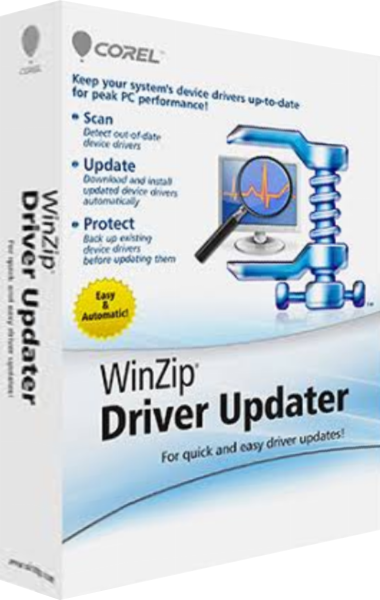
WinZip Driver Updater
Find and install device driver updates with tools for driver backups, restoration, exclusions and scheduled scans.
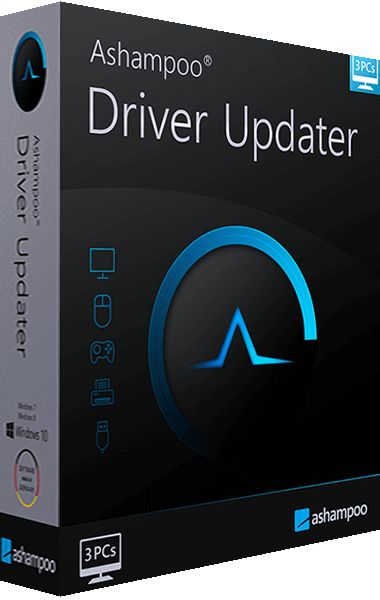
Ashampoo Driver Updater
Scan hardware drivers, review available updates and preserve working driver versions with backup and restore tools.
Explore more
- WinZip Driver Updater vs Auslogics Driver Updater
- WinZip Driver Updater vs ReviverSoft Driver Reviver
- WinZip Driver Updater vs IObit Driver Booster Pro
- WinZip Driver Updater vs AVG Driver Updater
- WinZip Driver Updater vs iolo Updater
- Driver updater software overview
- PC maintenance and optimization overview
- Keep independent copies of important files