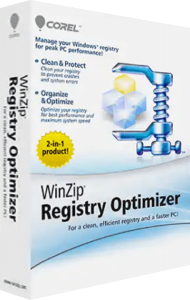

Inspect invalid and leftover Windows registry entries
WinZip Registry Optimizer scans the Windows registry for invalid references and entries left behind by software changes. These can include paths to removed programs, missing shared files or outdated file associations.
Review the findings in the context of the problem you are investigating. A large number of detected entries does not, by itself, show that the computer needs extensive repairs or establish how much its performance will change.
Choose a standard scan or a broader Deep Scan
A standard scan checks common categories such as application paths, fonts, uninstall entries, shared DLLs and file associations. The optional Deep Scan extends the search to registry areas outside the standard categories.
The broader scan takes longer and may report more items. Close other applications before carrying out repairs, and inspect the results rather than choosing changes solely because they increase the number of entries cleaned.
Keep a recovery path for registry repairs
Registry Optimizer creates a registry backup before repairs. Its Restore feature lets you select a dated backup and reverse the associated changes. An additional option enables creation of a Windows restore point before optimization.
Know where the restore controls are before applying changes. If an application behaves differently afterward, use the relevant backup to undo the repair and check the affected application's entries before scanning again.
Exclude entries that should remain in place
Exclusions let you leave a program's registry entries or a registry area out of future scans and repairs. You can also exclude an individual finding from the results. This is useful for recurring placeholders that an application recreates when it runs.
Keep exclusions specific to entries you have checked. Revisit them when the associated software changes, and avoid treating every repeated finding as evidence that a repair has failed.
Review startup programs and schedule scans
The Startup Manager lets you disable selected applications that launch with Windows. The scheduling controls provide a separate way to arrange when Registry Optimizer runs.
Review startup items by their purpose before disabling them. Change a small number at a time, then check the next sign-in to confirm that the applications you rely on still behave as expected.
Match registry maintenance to the task
Registry Optimizer focuses on registry inspection and maintenance. For scanning files and system areas for malware, explore WinZip Malware Protector. Registry findings are different from malware detections.
For compressed archives, see WinZip Standard Suite. The WinZip software overview brings the catalog's products together so you can choose the tool suited to the work you need to do.
Browse PC maintenance and optimization software for related tools and comparisons of registry inspection, startup management and broader maintenance workflows.
Compare WinZip Registry Optimizer
- WinZip Registry Optimizer vs Auslogics Registry Cleaner
- WinZip Registry Optimizer vs ReviverSoft Registry Reviver
- WinZip Registry Optimizer vs Ashampoo WinOptimizer Pro 29
- WinZip Registry Optimizer vs IObit Advanced SystemCare Pro
- WinZip Registry Optimizer vs iolo System Mechanic
- WinZip Registry Optimizer vs ReviverSoft PC Reviver