Product comparison
WinZip Disk Tools vs O&O Defrag 32
WinZip Disk Tools combines file cleanup and duplicate searches with drive maintenance. O&O Defrag 32 emphasizes drive analysis, method selection and ongoing optimization. Its Advisor can recommend leaving a drive alone when further optimization is not worthwhile.
Compare storage workflows
| Task | WinZip Disk Tools | O&O Defrag 32 |
|---|---|---|
| Main task | Reclaim space and inspect or maintain a hard drive | Analyze drives and decide whether optimization is worthwhile |
| HDD optimization | Hard-drive scanning and defragmentation | HDD methods selected around the drive and workload |
| SSD handling | Verify the operation supported for the detected drive | SSD-oriented methods, including SOLID, differ from HDD file sorting |
| Decision support | Monitoring and benchmark tools | Advisor recommendations and drive reports |
| Recurring maintenance | Review available controls in the installed Disk Tools build | Automatic optimization and configurable scheduled jobs |
| Reclaiming capacity | Temporary-file cleanup and duplicate removal | File-layout optimization normally preserves file contents; review cleanup tools separately |
Which workflow fits?
Consider WinZip for cleanup and drive inspection
WinZip Disk Tools suits a task combining temporary-file cleanup, duplicate review and hard-drive maintenance. Review file locations before deleting copies and use monitoring or benchmarks to investigate a specific drive task.
Consider Defrag for analysis-led drive optimization
O&O Defrag 32 is useful when selecting a suitable optimization method and reviewing reports are the main tasks. Start with analysis and the Advisor. A recommendation that no work is needed can be a satisfactory result; a lower fragmentation percentage alone is not a complete performance measurement.
SpeedCheck is accessible through the Tools workflow for broader checks. A Tools launch entry does not establish that a separate utility is built into the optimizer or included under every license. Compare the selected drive operation and available tools separately.
Check the selected controls
- Identify the drive type and run analysis before selecting an optimization method.
- Review the Advisor recommendation, including a possible recommendation to do nothing.
- Check which application manages scheduled maintenance to avoid overlapping jobs.
- After a selected task, inspect its report and compare an equivalent workload.
Keep an independent copy of important files before substantial cleanup. Space recovered, fragmentation and task speed measure different things. This comparison covers documented workflows rather than measured speed gains or predictions of drive reliability.
Compared products
Review the selected catalog products and the controls available in the edition you intend to use.
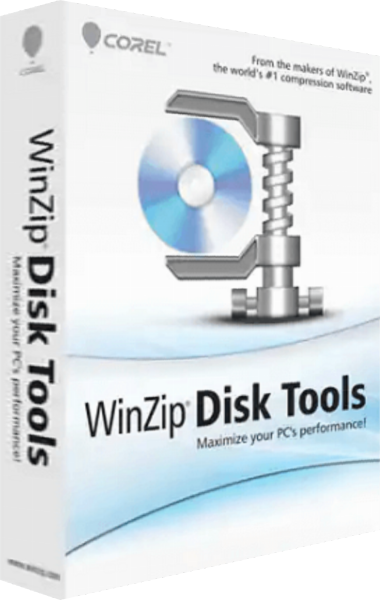
WinZip Disk Tools
Clean junk files, find duplicates and inspect drives with hard-drive defragmentation, monitoring and performance tests.
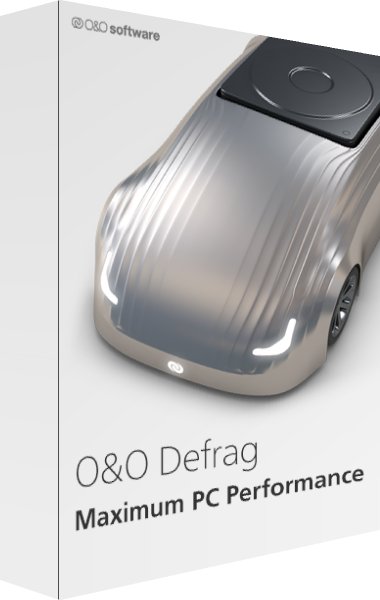
O&O Defrag
Analyze and optimize HDDs and SSDs and manage Windows maintenance tasks.
Explore more
- WinZip Disk Tools vs Auslogics BoostSpeed
- WinZip Disk Tools vs Ashampoo WinOptimizer Pro 29
- WinZip Disk Tools vs Auslogics Disk Toolkit
- WinZip Disk Tools vs Auslogics Disk Defrag Ultimate
- WinZip Disk Tools vs IObit Smart Defrag Pro
- Disk management software guide
- Disk optimization software overview
- PC maintenance and optimization overview
- Keep independent copies of important files