Product comparison
WinZip Disk Tools vs Auslogics BoostSpeed
Both products combine storage cleanup with drive maintenance. WinZip Disk Tools includes temporary-file cleanup, duplicate searches, defragmentation, monitoring and benchmarks. BoostSpeed adds storage-analysis tools and wider Windows tuning within a larger maintenance suite.
Compare storage workflows
| Task | WinZip Disk Tools | Auslogics BoostSpeed |
|---|---|---|
| Cleanup | Remove selected junk and temporary files | Disk cleanup and Windows Slimmer for different storage areas |
| Duplicate copies | Find repeated files and choose which copies to remove | Duplicate File Finder within the maintenance suite |
| Space investigation | Cleanup and duplicate findings help identify removable data | Disk Explorer shows which files and folders occupy storage |
| Mechanical drives | Hard-drive scanning and defragmentation | Disk Defrag provides HDD analysis and maintenance |
| Solid-state drives | Confirm the supported action for the detected drive before starting | SSD Optimizer provides a separate SSD maintenance workflow |
| Wider maintenance | Drive monitoring and performance benchmarks | Startup, service and system-tuning tools beyond disk maintenance |
Which workflow fits?
Consider WinZip for cleanup and drive inspection
WinZip Disk Tools suits a task combining temporary-file cleanup, duplicate review and hard-drive maintenance. Review file locations before deleting copies and use monitoring or benchmarks to investigate a specific drive task.
Consider BoostSpeed for storage analysis and wider maintenance
Auslogics BoostSpeed fits a routine that includes finding large folders, reviewing duplicate copies and adjusting other Windows maintenance areas. Use Disk Explorer to understand storage use before deciding what to remove. Advanced tools and recurring controls depend on the selected edition.
Compare disk-space recovery separately from file-layout optimization. Rescue Center covers supported operation backups; do not assume it can restore every file deleted during cleanup.
Check the selected controls
- Choose one drive and record its free space before changing anything.
- In BoostSpeed, inspect the largest folders with Disk Explorer before selecting cleanup.
- Review duplicate groups and retain intentional backups or project copies.
- Run one selected task and compare free space and the same file-access workload afterward.
Keep an independent copy of important files before substantial cleanup. Space recovered, fragmentation and task speed measure different things. This comparison covers documented workflows rather than measured speed gains or predictions of drive reliability.
Compared products
Review the selected catalog products and the controls available in the edition you intend to use.
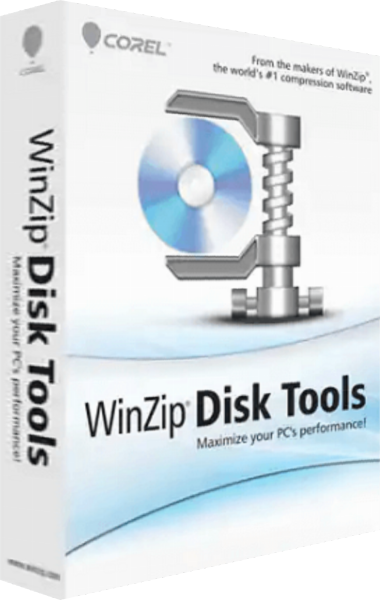
WinZip Disk Tools
Clean junk files, find duplicates and inspect drives with hard-drive defragmentation, monitoring and performance tests.
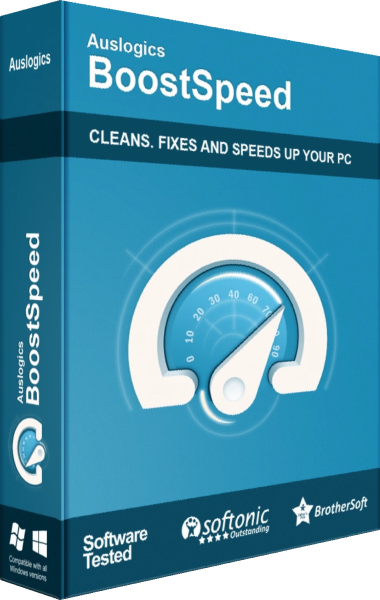
Auslogics BoostSpeed
Review Windows cleanup, optimization settings, and storage-maintenance tasks.
Explore more
- WinZip Disk Tools vs Ashampoo WinOptimizer Pro 29
- WinZip Disk Tools vs Auslogics Disk Toolkit
- WinZip Disk Tools vs O&O Defrag 32
- WinZip Disk Tools vs Auslogics Disk Defrag Ultimate
- WinZip Disk Tools vs IObit Smart Defrag Pro
- Disk management software guide
- Disk optimization software overview
- PC maintenance and optimization overview
- Keep independent copies of important files