Product comparison
WinZip Disk Tools vs IObit Smart Defrag Pro
WinZip Disk Tools brings cleanup, duplicate search and drive tests together. Smart Defrag Pro emphasizes ongoing drive optimization, including Auto Defrag, boot-time processing and a distinct TRIM workflow for SSDs.
Compare storage workflows
| Task | WinZip Disk Tools | IObit Smart Defrag Pro |
|---|---|---|
| HDD operation | Hard-drive scanning and defragmentation | Analyze and select HDD defragmentation or optimization modes |
| SSD operation | Verify the available action for the detected SSD | TRIM and SSD-oriented optimization controls |
| Automatic work | Inspect the controls available in the installed build | Auto Defrag is a Pro feature; scheduling settings govern recurring work |
| Boot-time tasks | Review the installed build for supported task types | Boot Time Defrag handles eligible files during startup |
| Cleanup scope | Temporary-file cleanup and duplicate-file search | Disk Cleanup is offered for the system disk; drive optimization is the main focus |
| Additional inspection | Monitoring and benchmark tests | Disk Health information and Game Optimize for selected game data |
Which workflow fits?
Consider WinZip for cleanup and drive inspection
WinZip Disk Tools suits a task combining temporary-file cleanup, duplicate review and hard-drive maintenance. Review file locations before deleting copies and use monitoring or benchmarks to investigate a specific drive task.
Consider Smart Defrag Pro for automatic drive maintenance
IObit Smart Defrag Pro is relevant when Auto Defrag, scheduled work or boot-time processing matches the task. Select an HDD operation or the separate SSD workflow according to the detected drive. Game Optimize concerns selected game data and does not establish a guaranteed frame-rate improvement.
The comparison covers Pro because automatic defragmentation is edition-dependent. TRIM and file defragmentation are different operations; review the selected action rather than applying one HDD routine to every drive.
Check the selected controls
- Identify the drive type and inspect the available HDD or SSD actions.
- Review Auto Defrag, scheduling and any Windows maintenance schedule together.
- Select boot-time processing only for a task you intend to run during a restart.
- Inspect the resulting status and test the same file or game-loading task afterward.
Keep an independent copy of important files before substantial cleanup. Space recovered, fragmentation and task speed measure different things. This comparison covers documented workflows rather than measured speed gains or predictions of drive reliability.
Compared products
Review the selected catalog products and the controls available in the edition you intend to use.
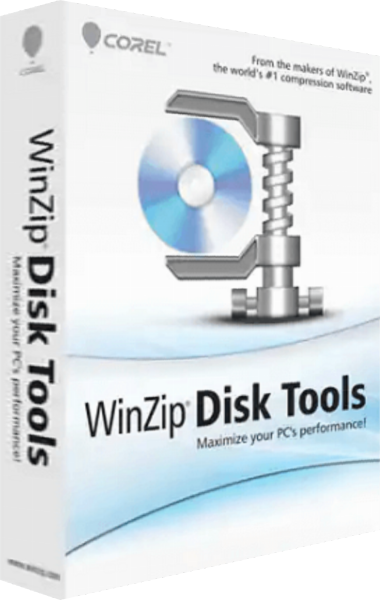
WinZip Disk Tools
Clean junk files, find duplicates and inspect drives with hard-drive defragmentation, monitoring and performance tests.
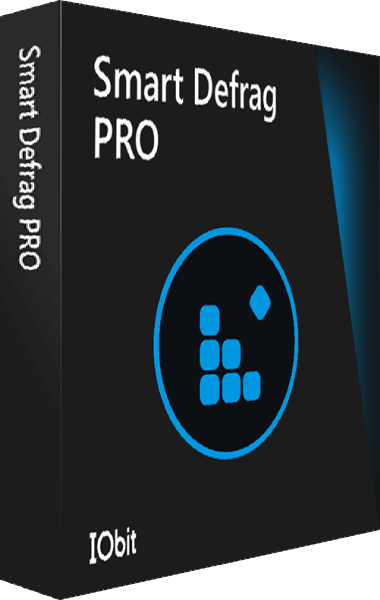
IObit Smart Defrag Pro
Analyze and optimize Windows drives with automatic and boot-time maintenance.
Explore more
- WinZip Disk Tools vs Auslogics BoostSpeed
- WinZip Disk Tools vs Ashampoo WinOptimizer Pro 29
- WinZip Disk Tools vs Auslogics Disk Toolkit
- WinZip Disk Tools vs O&O Defrag 32
- WinZip Disk Tools vs Auslogics Disk Defrag Ultimate
- Disk management software guide
- Disk optimization software overview
- PC maintenance and optimization overview
- Keep independent copies of important files