Product comparison
WinZip Privacy Protector vs CCleaner Professional
WinZip presents cleanup as a review of stored personal information and activity traces. CCleaner Professional combines browser cleaning with wider PC maintenance and offers automatic browser cleaning when a browser closes. Compare the categories and triggers you will use.
Compare privacy workflows
| Task | WinZip Privacy Protector | CCleaner Professional |
|---|---|---|
| Primary task | Find stored personal information and review selected records | Clean browser and temporary files as part of PC maintenance |
| Browser cleanup | Scan selected history and cookie areas | Choose supported browser-data categories in cleanup settings |
| Saved credentials | Review the usernames-and-passwords scan area | Saved passwords and form information require explicit cleanup selection |
| Automatic operation | Scheduled scans and Active Cleaning checks | Professional automatic browser cleaning or prompts after browser closure |
| Selection before deletion | Choose scan categories and review findings | Review cleanup categories and analysis before applying changes |
| Wider workflow | Focus on personal-data and activity-trace review | Performance Optimizer, Software Updater and Driver Updater are separate maintenance tools |
Which workflow fits?
Consider WinZip for reviewing stored personal information
WinZip Privacy Protector is a candidate when you want to inspect selected categories of personal information before deleting records. Keep needed credentials accessible elsewhere and review findings before removal: the cleanup has no built-in undo.
Consider CCleaner for browser cleanup within PC maintenance
CCleaner Professional fits a routine that also includes temporary-file cleanup, software updates or performance-management tools. Its automatic browser-cleaning options are useful when browser closure is the intended trigger. Inspect the installed release because category names and controls can change.
This comparison concerns Professional, including its automatic browser-cleaning feature. Do not assume general browser cleanup removes saved passwords: review the dedicated password and form-data selections before enabling automation.
Check the selected controls
- Select the same browser profile and compare the exposed data categories.
- Inspect saved-password and form-data settings separately from history and cookies.
- Run a small manual cleanup and check retained sessions before enabling automatic operation.
- Close the browser and verify the configured Professional cleaning action or prompt.
Compare the same browsers and profiles using the installed releases. Local cleanup does not delete records held by websites, and a count of findings is not a measurement of tracking-protection effectiveness.
Compared products
Review the selected catalog products and the controls available in the edition you intend to use.
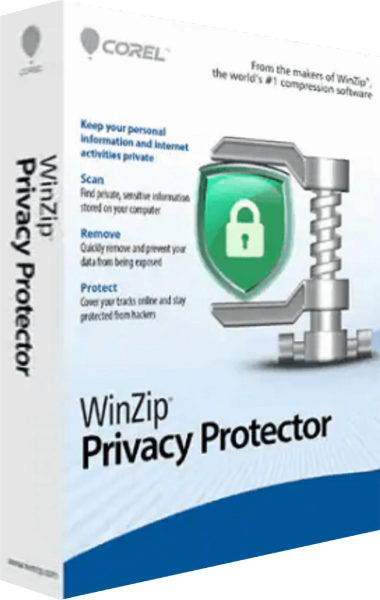
WinZip Privacy Protector
Find and selectively remove stored personal information, saved browser credentials, history and cookies from a Windows PC.
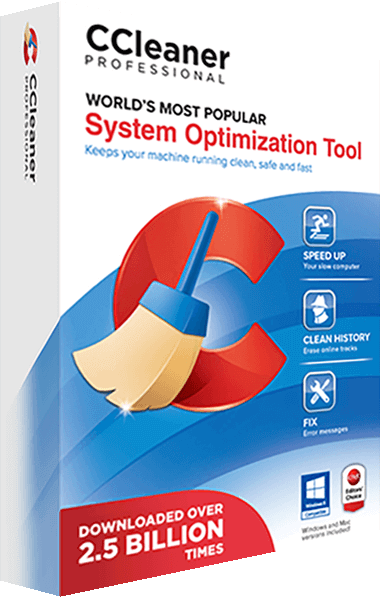
CCleaner Professional
Clean up Windows files and manage performance, software updates, and drivers with CCleaner Professional.
Explore more
- WinZip Privacy Protector vs VIPRE Privacy Shield
- WinZip Privacy Protector vs Ashampoo Privacy Inspector 2
- WinZip Privacy Protector vs iolo Privacy Guardian
- WinZip Privacy Protector vs Ashampoo WinOptimizer Pro 29
- WinZip Privacy Protector vs Ashampoo AntiSpy Pro
- Privacy tools overview
- PC maintenance and optimization overview
- Keep independent copies of important files