Product comparison
Tipard Video Converter Ultimate vs Nero Video 2026
Tipard Video Converter Ultimate prepares files and offers themed MV videos and split-screen collages. Nero Video 2026 builds a longer production around express or advanced editing and video-disc authoring. The choice depends on whether the task is preparing media or arranging an editable film project.
Compare media workflows
| Task | Tipard Video Converter Ultimate | Nero Video 2026 |
|---|---|---|
| Starting workflow | Convert files or DVDs, prepare clips, or start an MV or Collage composition | Start an express project, advanced edit or slideshow |
| Sequence building | Trim and merge clips, apply themes and arrange split-screen layouts | Arrange video, photos, overlays and audio on multiple tracks |
| Visual presentation | Picture adjustments, filters, watermarks, MV titles and collage layouts | Titles, transitions, keyframe animation, green-screen and picture-in-picture effects |
| Sound | Track selection, volume and delay controls and background music | Arrange project sound and apply audio filters |
| Delivery | Video and audio files plus DVD ISO or folder backups from DVD sources | Export movies or author DVD-Video and Blu-ray projects with menus and chapters |
| Project goal | Prepare compatible files or a short themed or split-screen composition | Maintain a layered film or slideshow project for further editing and delivery |
Which workflow fits?
Choose Ultimate for conversion and several preparation tasks
Tipard Video Converter Ultimate suits working with local video, audio and DVD sources in one application. Convert files, trim or merge clips, adjust pictures and tracks, or use compression and enhancement tools. MV themes and split-screen collages add ways to assemble a short presentation.
Choose Nero Video for an editable film project
Nero Video 2026 offers another workflow for the task. Nero Video 2026 suits arranging scenes, overlays, titles and sound with a multi-track workflow. Express editing and templates provide another starting point. Its DVD-Video and Blu-ray authoring tools prepare new disc projects with menus and chapters, rather than simply converting an existing movie file.
Tipard's MV and Collage tools are useful compositions but should not be described as equivalent to Nero's advanced editing timeline. A DVD ISO backup from a source DVD is also different from authoring a new menu for an edited film. This comparison covers the Nero Video 2026 catalog edition.
Check a representative project
- Choose a project with several scenes, a title, background music and an overlay or split-screen requirement.
- Try revising clip order and timing after the first draft to assess the editing workflow.
- Export a short sequence and check titles, framing, speech levels and playback.
- If the audience needs a disc, test the authored menu and chapters; retain the editable project and original media separately.
Keep source media separate from exports. Re-encoding to a smaller file can discard detail, and a higher output resolution does not make the source native high-definition footage. Review picture, sound and captions on the intended player before processing a larger collection.
Compared products
Review the selected catalog products and match input sources, preparation tools and output choices to the project you need to finish.
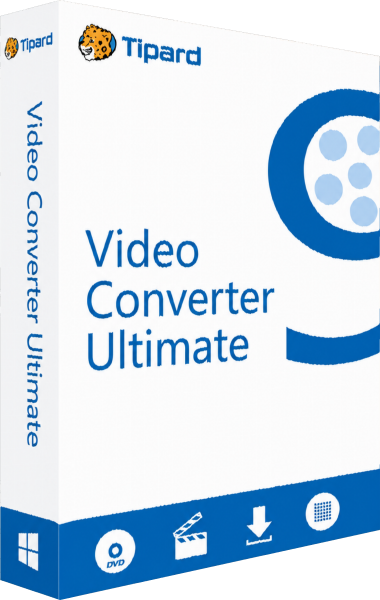
Tipard Video Converter Ultimate
Convert video, audio and DVDs, edit clips, compress files, and create themed videos or split-screen collages.
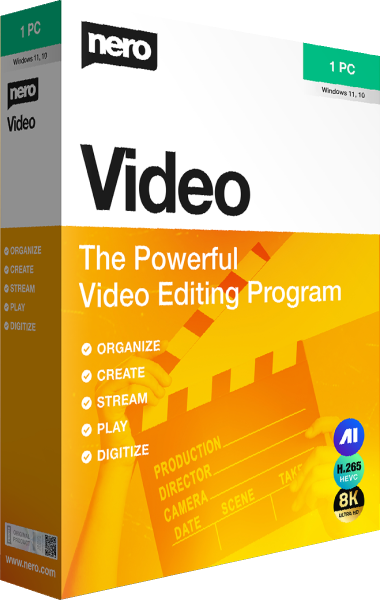
Nero Video
Build movies using express or advanced editing, prepare portrait videos, and author discs with menus.
Explore more
- Tipard Video Converter Ultimate vs Nero Recode 2026
- Tipard Video Converter Ultimate vs Ashampoo Video Converter
- Tipard Video Converter Ultimate vs Tipard Blu-ray Converter
- Tipard Video Converter Ultimate vs Tipard DVD Ripper
- Tipard Video Converter Ultimate vs Tipard Video Enhancer
- Video editing software overview