Product comparison
Tipard Video Enhancer vs Ashampoo Video Stabilization
Both products offer stabilization for shaky footage. Tipard combines it with resolution enhancement, noise reduction and conversion. Ashampoo Video Stabilization centers on camera movement while also exposing framing and color controls. Compare the result on the same handheld recording.
Compare video workflows
| Task | Tipard Video Enhancer | Ashampoo Video Stabilization |
|---|---|---|
| Main task | Enhancement, clip preparation and format conversion | A stabilization-centered workflow for handheld footage |
| Camera shake | Video stabilization option | Automatic video stabilization |
| Lighting and color | Brightness, contrast, saturation and hue controls | White balance, exposure, color and saturation adjustments |
| Framing | Crop, rotate and flip clips | Crop, mirror and rotate, including custom angles and aspect ratios |
| Broader corrections | Resolution enhancement, video noise reduction and deinterlacing | Review the stabilization and color controls around the movement problem |
| Output context | Choose an export profile and process several clips | Work with supported common video formats and codecs, including high-resolution footage |
Which workflow fits?
Consider Tipard for clip correction and conversion
Tipard Video Enhancer suits preparing supported local videos with lighting adjustments, noise reduction, stabilization and resolution enhancement. Select the corrections needed by the clip, trim or crop where useful and choose an output profile. Test one representative export before processing a batch.
Consider Video Stabilization when camera movement is the main issue
Ashampoo Video Stabilization is relevant when the task is reducing handheld shake and then correcting the frame or exposure. Compare motion through the whole sample, including pans and subjects moving near the edge. Its framing tools can be useful when the intended aspect ratio also needs attention.
Stabilization cannot remove every form of motion blur. Check any loss of framing or unnatural edge movement in the export. Choose separate noise or resolution corrections according to the recording rather than treating all visible defects as camera shake.
Check the selected controls
- Use the same short handheld clip in both applications.
- Enable stabilization and inspect a moving subject through the entire sample.
- Check the frame boundaries and important subjects after cropping or rotation.
- Compare exports at the same playback size before choosing the routine for other clips.
Keep originals and save processed files separately. Review motion, frame boundaries and fine texture in the export, not only the preview. Strong correction can soften detail or change framing, and a higher-resolution output cannot guarantee an accurate reconstruction of information missing from the recording.
Compared products
Review the selected catalog products and check correction tools, editing scope and output options for your footage.

Tipard Video Enhancer
Enhance video resolution, lighting and stability, reduce visible noise, and prepare clips with editing and conversion tools.
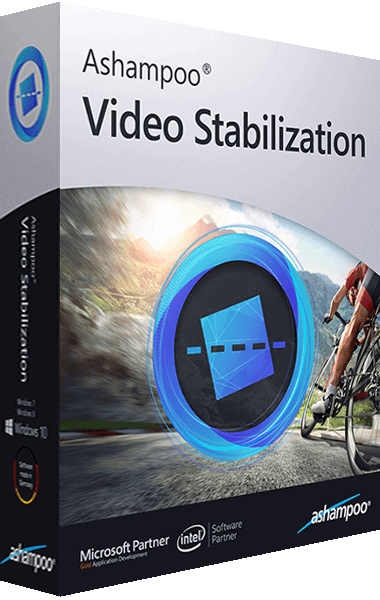
Ashampoo Video Stabilization
Reduce camera shake with Ashampoo Video Stabilization.