Product comparison
Tipard Video Enhancer vs Ashampoo Video Optimizer Pro 3
Both programs combine picture correction with practical clip preparation. Tipard emphasizes resolution enhancement, lighting, noise reduction and stabilization. Video Optimizer Pro 3 also provides sharpening, deflickering and lens correction. Compare the correction needed by the source footage rather than the maximum output resolution alone.
Compare video workflows
| Task | Tipard Video Enhancer | Ashampoo Video Optimizer Pro 3 |
|---|---|---|
| Lighting | Automatic brightness and contrast plus manual picture controls | Exposure, white balance, shadows and highlights adjustments |
| Noise and detail | Video noise reduction and resolution enhancement | Noise reduction and sharpening |
| Camera movement | Video stabilization for shaky footage | Stabilization plus camera-profile lens correction |
| Other corrections | Deinterlacing for interlaced sources | Deflickering for unevenly lit or time-lapse footage |
| Clip preparation | Trim, merge, crop, rotate, flip and add watermarks | Trim, combine, crop, rotate, add overlays and change playback speed |
| Repeated work | Batch conversion with chosen output profiles | Batch processing with built-in and custom presets; H.265 and 4K support |
Which workflow fits?
Consider Tipard for clip correction and conversion
Tipard Video Enhancer suits preparing supported local videos with lighting adjustments, noise reduction, stabilization and resolution enhancement. Select the corrections needed by the clip, trim or crop where useful and choose an output profile. Test one representative export before processing a batch.
Consider Video Optimizer for a wider set of corrective tools
Ashampoo Video Optimizer Pro 3 fits footage needing lens-distortion correction, deflickering or reusable correction presets alongside stabilization and noise reduction. Inspect whether a selected effect applies to a whole clip or a section, and preview difficult scenes before reusing settings.
Sharpening, noise reduction and resolution changes address different properties. Compare moving subjects and fine textures as well as still frames. A 4K output option does not establish that the software can accurately reconstruct detail absent from the source.
Check the selected controls
- Choose a representative scene with the lighting or movement problem you want to address.
- Apply the relevant correction and compare the preview with the untouched source.
- Inspect skin tones, shadows, fine textures and the frame edges in an exported sample.
- Reuse settings in a batch only after checking that the other clips need similar treatment.
Keep originals and save processed files separately. Review motion, frame boundaries and fine texture in the export, not only the preview. Strong correction can soften detail or change framing, and a higher-resolution output cannot guarantee an accurate reconstruction of information missing from the recording.
Compared products
Review the selected catalog products and check correction tools, editing scope and output options for your footage.

Tipard Video Enhancer
Enhance video resolution, lighting and stability, reduce visible noise, and prepare clips with editing and conversion tools.
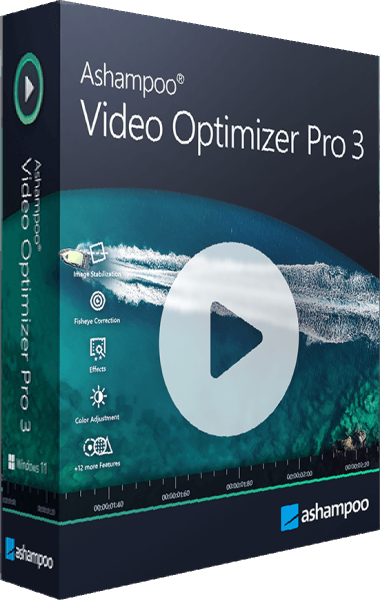
Ashampoo Video Optimizer Pro
Enhance colors, stabilize shaky footage, and reduce noise and flicker.