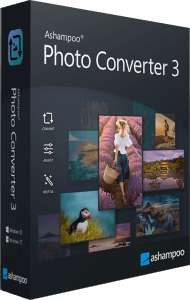


Convert and resize image collections with Photo Converter 3
Ashampoo Photo Converter 3 combines image format conversion with batch resizing, adjustments, and effects. Prepare a folder of photographs for sharing, create smaller copies for a website, or apply a consistent watermark to a collection.
Work through the graphical batch wizard for occasional tasks, or use the command-line interface for repeated processing. Keep the original images and inspect a sample output before converting a large collection.
Build a reusable batch workflow
Add files or folders, arrange the processing commands, and compare the preview with the original. Command order matters: resizing before adding a watermark can produce a different result from resizing afterwards.
Export your command sequence as an .apcbatch file and import it for later jobs. This helps repeat a workflow without configuring each operation again. Check a representative image whenever the source material changes.
Convert supported formats and choose output quality
Version 3 expands format support to HEIF, SVG, and newer RAW files from Canon, Nikon, and DNG workflows. JPG and PNG processing has also been updated. Choose an output format from the program's available options rather than assuming every input type can also be used for export.
Consider the destination when choosing a format and compression settings. A small web image and a copy intended for further editing have different priorities. Converting a file does not restore detail that was already lost through compression or low resolution.
Resize, rotate, and adjust aspect ratios
Resize images using pixels, percentages, or physical dimensions with DPI settings. Rotate or flip pictures, adjust their aspect ratio, and add frames when preparing a set for a consistent presentation.
For web use, check pixel dimensions and file size. For printing, check the intended physical size alongside the available resolution. Increasing dimensions does not create the same detail as a higher-resolution original.
Adjust appearance and add watermarks
Brightness, contrast, gamma, saturation, and color adjustments help refine a batch. Creative options include black-and-white, sepia, pencil sketch, and sharpening. A positionable watermark or capture-date overlay can add context to exported copies.
Use these operations where they suit the images. A single correction may work well on a consistently lit set but poorly on a mixed collection. Review both bright and dark examples before processing everything.
Automate conversion from the command line
The CLI accepts source paths and file lists, output settings, logging options, and saved command sets. It is useful for recurring image preparation jobs that need the same sequence of operations.
Choose a separate destination and review the log and sample files after a run. Test the workflow on copies before enabling options that delete originals.
Keep folders and file dates organized
For organizing filenames, see Ashampoo File Renamer. Renaming and image conversion address different parts of preparing a collection.
Output options can retain folder structure and original file dates. Review these choices when converting a collection spread across subfolders so the exported files remain easy to locate.
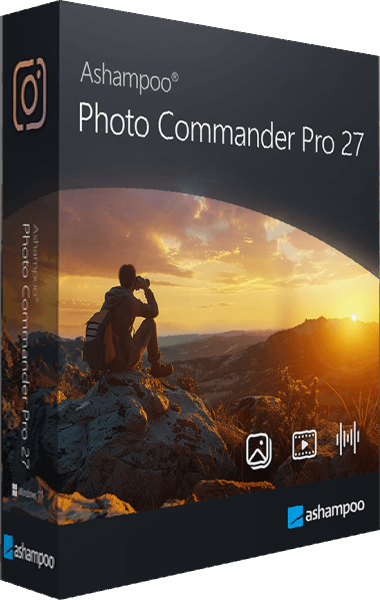
Check the final images and relevant metadata before removing source files. For organizing and editing individual photographs, compare Ashampoo Photo Commander 27; Photo Converter focuses on repeating image operations across a batch.
What is new in Photo Converter 3?
Version 3 introduces a redesigned interface, a drag-and-drop batch wizard, and a dedicated CLI workflow. Reusable command sets, expanded format handling, and DPI-based resizing provide more control over recurring jobs.
These additions are useful when you regularly prepare images to the same specifications. Start with the graphical workflow to check the result, then reuse the saved operations for subsequent batches.
Photo Converter 3 purchase options
Review the product and license details in the standard purchase section before continuing to checkout.
View Ashampoo Photo Converter 3 purchase options.
Compare filename and image-processing workflows
Read our Ashampoo File Renamer vs Ashampoo Photo Converter 3 comparison to distinguish filename changes from image conversion and reusable processing commands.