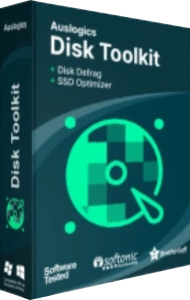

Maintain mixed storage with Auslogics Disk Toolkit
Auslogics Disk Toolkit bundles Disk Defrag and SSD Optimizer for Windows. It combines separate applications for mechanical hard drives and solid-state storage, letting you select maintenance around the drive involved.
A computer with an SSD for Windows and an HDD for larger files is a useful example. Identify each drive first, then review the relevant application rather than applying the same operation to both.
Use Disk Defrag for mechanical hard drives
Auslogics Disk Defrag analyzes HDD fragmentation and reorganizes scattered file fragments. It also provides free-space consolidation and selected-file or folder maintenance.
Start with analysis and choose the scope that matches your files. If a particular project folder is the concern, inspect that data before processing an entire drive.
Use SSD Optimizer for solid-state storage
Auslogics SSD Optimizer provides SSD-oriented maintenance, folder-size analysis, and drive-status information. Its workflow differs from traditional HDD defragmentation.
Review the selected action and storage type before starting. Monitor the result around your usual workload rather than assuming that more frequent optimization must be better.
Choose tasks around the problem you observe
File layout, occupied capacity, and hardware status describe different aspects of storage. The toolkit provides ways to inspect them, but one reading does not explain every slowdown.
For example, a large media folder may call for a storage review, while scattered project files on an HDD may justify a fragmentation check. Investigate persistent errors rather than repeating unrelated maintenance.
Review the included editions and task settings
The published bundle contains Disk Defrag and SSD Optimizer. Check the selected offer for included editions, license duration, device coverage, and advanced controls such as scheduling.
Do not assume that Disk Defrag Ultimate or every Auslogics utility is included. Confirm enabled drives and cleanup selections before leaving any recurring task in place.
Check results after maintenance
Allow large transfers to finish before starting demanding drive work. Afterward, review the result and compare the same file-access or application task under similar conditions.
Neither a favorable health reading nor a completed optimization guarantees future reliability. Keep independent recovery copies, and confirm you can retrieve important files before substantial storage changes.
Compare a focused storage bundle with a broader suite
For a wider collection of utilities, see Auslogics Essential Tools. Its named applications and maintenance scope differ from this two-application storage bundle.
Choose around the tasks you actually need. Disk maintenance does not replace backup, guarantee higher frame rates, or repair every hardware fault.