Product comparison
Tipard Blu-ray Creator vs Nero Video 2026
Both products can prepare a Blu-ray video project with menus. Tipard Blu-ray Creator focuses on taking video files to a disc, ISO image or Blu-ray folder. Nero Video 2026 adds express and advanced editing, so the choice depends on how much work remains before authoring the disc.
Compare Blu-ray workflows
| Task | Tipard Blu-ray Creator | Nero Video 2026 |
|---|---|---|
| Starting point | Add video files to a Blu-ray-authoring project | Build a movie or slideshow using express or advanced editing |
| Clip preparation | Trim, crop, adjust picture settings and add watermarks | Arrange scenes, overlays, titles and sound on multiple tracks |
| Menus | Templates with editable text, title frames, buttons, background images and music | Themed DVD-Video and Blu-ray menus with chapters |
| Audio and presentation | Audio and subtitle tools with timing adjustments | Project audio, audio filters, transitions, keyframes and picture-in-picture effects |
| Delivery | Blu-ray disc, ISO image or Blu-ray folder; BD-25 and BD-50 targets | Movie-file export or DVD-Video and Blu-ray authoring |
| Resolution and scope | Published disc output settings up to 1080p | HD, 4K and 8K editing workflows; disc output is a separate authoring choice |
Which workflow fits?
Choose Tipard for a dedicated video-to-Blu-ray project
Tipard Blu-ray Creator suits combining video files into a Blu-ray presentation, preparing clips and customizing a menu. Save the result to a disc, ISO image or Blu-ray folder. Review the selected audio and subtitles, capacity and output settings before producing copies.
Choose Nero Video when the film still needs editing
Nero Video 2026 offers another workflow for the project. Use Nero Video 2026 to refine the sequence, layer titles or overlays and arrange sound before creating the disc menu. Express editing and templates offer another starting point for a short presentation. Keep the editable project and source media when revisions are likely.
Check the authoring scope
A high-resolution editing or import option does not establish native UHD Blu-ray authoring. Tipard publishes output settings up to 1080p. Compare the actual disc format and its encoding choices separately from the resolution of the source footage or a movie-file export.
Verify a test project
- Build a small project with two clips, a menu and at least one chapter link.
- Try changing the clip order, title text and soundtrack after the first draft.
- Preview the menu navigation and a scene with dialogue, then check the selected disc format.
- Save a test output and verify one finished disc on the intended player before making additional copies.
Keep source recordings and any editable project separately from finished output. Preview menu buttons, title order, subtitles and audio timing, then verify the result in the intended playback setup. A saved folder should retain its Blu-ray structure; avoid moving individual files out of it.
Compared products
Review the selected catalog entries and check the authoring, menu and recording functions needed for your project.
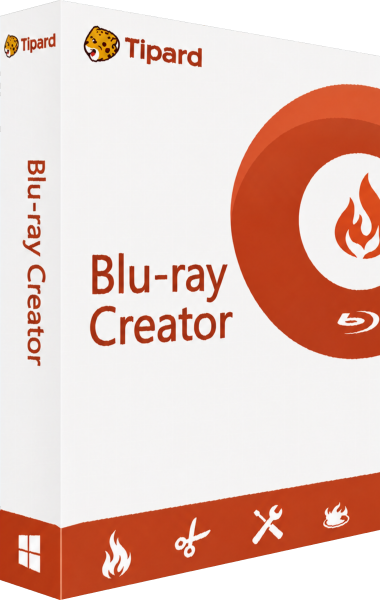
Tipard Blu-ray Creator
Author video files to Blu-ray disc, ISO or folder, with custom menus, clip editing, audio and subtitle tools.
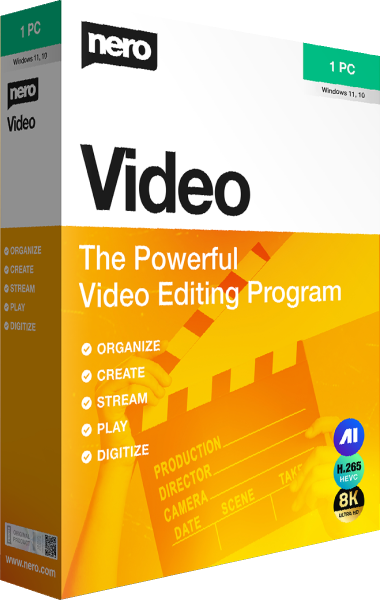
Nero Video
Build movies using express or advanced editing, prepare portrait videos, and author discs with menus.