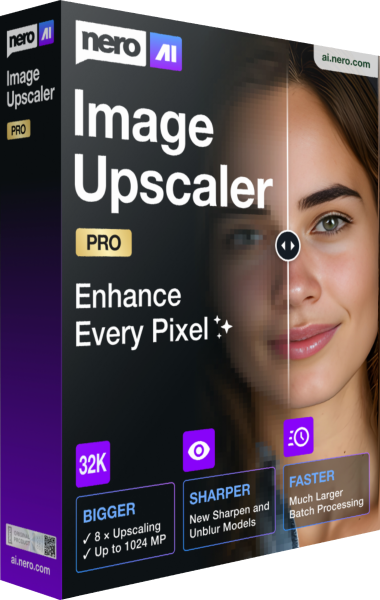





Nero AI Image Upscaler 2027
A newer edition is available
Enlarge still images and enhance photographs or illustrations with AI models, flexible output sizing and batch processing.
Learn more about Nero AI Image Upscaler 2027
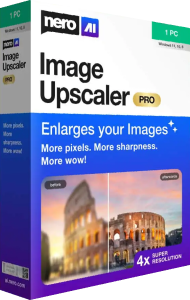
Enlarge still images with AI models and flexible output sizes
Nero AI Image Upscaler 2026: Create enlarged image copies with AI enhancement, adjustable model strength, target resolutions, and TIFF export. Review edition details for face recovery and cloud processing.
Related Products
This page covers an earlier release. Explore the current product version.
Nero AI Image Upscaler 2026 uses AI models to increase image dimensions and enhance the appearance of detail. Prepare larger copies of photographs or illustrations for a presentation, a creative project, or a closer view.
Create enlarged image copies with AI enhancement, adjustable model strength, target resolutions, and TIFF export. Review edition details for face recovery and cloud processing.
The 2026 workflow offers 2x and 4x enlargement, target sizes from 1K to 8K, and custom pixel dimensions with the aspect ratio locked. Choose the size that fits your project rather than exporting the largest option by default.
For example, a photograph used in a slide and the same photograph prepared for a larger layout may need different dimensions. Check the exported pixel size and the final placement before deciding whether another enlargement is useful.
Different AI models and model-strength settings let you adjust the influence of enhancement. Compare the result around textures, edges, and small details before keeping an export.
Fine patterns, lettering, and facial features deserve particular attention. A result can look sharper while introducing details that were not present in the original. Choose the version that suits the image, and retain the source for comparison.
Nero documents face recovery options that can be combined with an upscale model, along with local and cloud processing. Availability depends on the selected edition; Basic and Pro do not include the same features.
Check the edition details before planning a workflow around those options. When processing portraits, inspect expressions and recognizable features rather than judging the result only by apparent sharpness.
The 2026 update adds TIF/TIFF export alongside existing output formats. Choose a format suitable for the application or project that will use the enhanced image.
Save results separately from the originals and use filenames that identify the source and chosen settings. Open the exported file in the destination application to check dimensions, colors, and visible detail.
Dark and light interface themes are available in the refreshed 2026 interface. Choose the theme you prefer while reviewing model choices and output settings.
Judge the image at its intended viewing size as well as close up. A small preview may hide artifacts that become visible in a larger layout, while an enlarged inspection may emphasize details that do not matter in the final use.
For content-based tagging of a photograph collection, compare Nero AI Photo Tagger 2026. For browsing albums and presenting media, compare Nero MediaHome 2026.
Keep important originals backed up independently of enhanced exports. Nero BackItUp 2026 focuses on backup and recovery. An AI-generated enlargement is a new version of an image, not a substitute for its original.
Editorial rating by Find Your Software: 4.8 out of 5
Answers to common questions
It enlarges still images and uses AI enhancement to improve their appearance for viewing, layouts, and other image projects.
Options include 2x and 4x enlargement, 1K, 2K, 4K, and 8K targets, and custom pixel dimensions with a locked aspect ratio.
No. AI can generate plausible detail. Inspect the result and do not treat added features as a precise record of what the source originally contained.
No. Availability differs between Basic and Pro. Review the selected edition before relying on these features.
Yes. The 2026 update adds TIF/TIFF export alongside existing output formats.
This page covers still-image enlargement. Video frame interpolation belongs to a video-processing workflow.
Yes. Save enhanced copies separately and preserve originals with independent backups so you can compare results or make another export later.
A newer edition is available
Enlarge still images and enhance photographs or illustrations with AI models, flexible output sizing and batch processing.
Learn more about Nero AI Image Upscaler 2027