Product comparison
Bitwar Text Scanner vs EaseUS PDF Editor
Bitwar Text Scanner starts from images, screenshots and table images to create editable text, documents and spreadsheets. EaseUS PDF Editor recognizes scanned PDF text within a PDF editing and conversion application. The comparison centers on input preparation, recognition checks and the format needed for further work.
Compare OCR and document tasks
| Task | Bitwar Text Scanner | EaseUS PDF Editor |
|---|---|---|
| Source selection | Add image files or capture a selected screen area | Open a PDF; supported documents and images can also be used to create PDFs |
| OCR controls | Choose the relevant image, screenshot, batch or table recognition workflow | Choose recognition language and page range for an image-based PDF |
| Word and Excel work | Image to Word and Table OCR create DOCX and XLSX output | Convert PDF content to Word, Excel or other supported outputs; inspect structure after OCR and conversion |
| Collections and pages | Process multiple images and save separate or merged text results | Merge, split, extract and rotate PDF pages around the document task |
| Text review | Compare recognized text with the source image and correct errors | Proofread recognized content and use PDF text and image editing tools for further revisions |
| Finishing the result | Prepare extracted content for reuse in another application | Add annotations or form fields, compress the PDF and apply document-access settings |
Which workflow fits?
Choose Bitwar for direct image and screenshot extraction
Bitwar Text Scanner fits extracting a passage from a screenshot, recognizing multiple image pages or turning a table image into spreadsheet output. Use the task-specific OCR mode, compare the result with the source and check the saved file before relying on it for editing or calculations.
Choose EaseUS for a PDF-centered document workflow
EaseUS PDF Editor fits recognition followed by PDF revision, page assembly or conversion to Word and Excel. For an image source, prepare a PDF through the supported creation workflow, then select the OCR language and page range. Review the converted structure before using the output as the working document.
An Excel export still needs row, column and value checks
Bitwar Table OCR starts from an image of a table. EaseUS works through PDF recognition and conversion. Both routes can produce editable content, but neither the XLSX extension nor a successful export proves that all cells, headings and numeric values match the source.
A picture of a calculated value does not contain the original spreadsheet formula. Check dates, decimal separators, leading zeros and row alignment before sorting or calculating. Similarly, recognizing a scanned PDF is different from revising a PDF that already contains selectable text.
Check recognition and saved output
- Identify whether the source is an image, screenshot or multi-page PDF and preserve an unchanged copy.
- Choose a representative page or table, set the recognition language and select the needed page range or OCR mode.
- Compare words, numeric values, row alignment and columns with the source before editing or calculating.
- Open the saved DOCX, XLSX or PDF in its intended application and inspect page breaks, layout and important fields.
Recognition depends on source clarity, language and layout. These comparisons describe documented workflows and do not report measured OCR accuracy or processing-speed rankings. Use the same representative source to assess whether the checked output meets your needs.
Compared products
Choose around the source material, the required output and the editing or review steps that follow recognition.
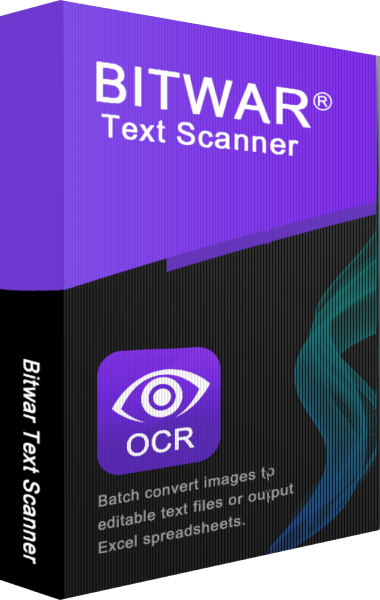
Bitwar Text Scanner
Recognize text in images and screenshots, convert tables to Excel and create editable Word documents.
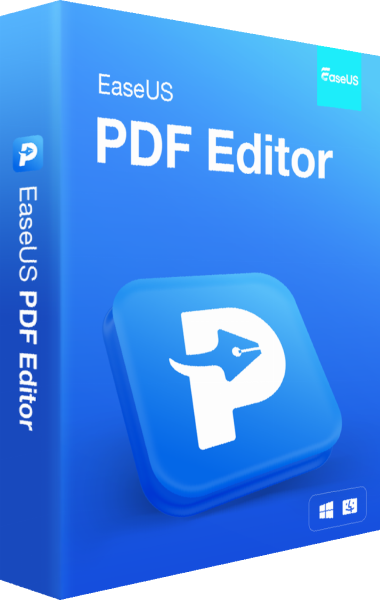
EaseUS PDF Editor
PDF editing software for changing text and images, converting documents, recognizing scanned text and organizing pages.