Product comparison
Bitwar Text Scanner vs Ashampoo PDF Pro 5
Bitwar Text Scanner extracts editable content from images, screenshots and table images. Ashampoo PDF Pro 5 includes OCR within a broader PDF editing and conversion workflow. Compare the source you have and the file you need afterward: a text passage, spreadsheet, editable document or revised PDF.
Compare OCR and document tasks
| Task | Bitwar Text Scanner | Ashampoo PDF Pro 5 |
|---|---|---|
| Starting material | JPG, JPEG, PNG and BMP images, captured screen areas and image-based document pages | Existing PDFs and scanned pages within the PDF workflow |
| Recognition task | Images OCR, Screenshot OCR, Batch OCR and Table OCR | OCR for searchable and editable scanned text |
| Editable outputs | TXT, DOCX and XLSX, with dedicated image-to-Word and table-to-Excel workflows | PDF editing and conversion, including Word output; check the recognized layout after conversion |
| Multiple items | Batch image recognition with separate or merged text output | PDF page organization, merging, extraction and rearrangement within a document workflow |
| Review and correction | Compare OCR text with the source image before reuse | Edit recognized content and inspect layout; document comparison helps review revisions |
| Work after recognition | Reuse extracted text, documents or spreadsheet cells in the next application | Continue with PDF text and image editing, forms, comments, encryption and digital signatures |
Which workflow fits?
Choose Bitwar for extraction from images and screenshots
Bitwar Text Scanner fits a screenshot, an image collection or a photographed table whose content you want to reuse outside the original layout. Choose TXT, Word or Excel output around the next task, then check the recognized text and structure before passing it into another document.
Choose PDF Pro for recognition followed by PDF editing
Ashampoo PDF Pro 5 fits scanned pages that need to become searchable or editable within a PDF workflow. After OCR, revise text, organize pages or convert to a supported document format. Keep the original scan so that any recognition correction or layout change can be checked before delivery.
Recognizing text and preparing a finished PDF are separate steps
Bitwar provides output-oriented OCR tasks, including table images to Excel and images to Word. PDF Pro combines recognition with tools for editing and assembling PDFs. A screenshot of a page and the complete multi-page PDF can require different input preparation and review.
OCR does not guarantee preservation of every column, line break or table cell. Document comparison can help inspect revisions, but it does not certify the accuracy of recognition against a scanned source. Check important names, numbers and page order before final formatting or signing.
Check recognition and saved output
- Decide whether you need extracted content or a PDF that remains the main working document.
- Choose a clear representative page, the relevant recognition language and an output suited to the next task.
- Check text, columns, table structure and page order against the original scan after recognition or conversion.
- Save a separate working copy, inspect it in the receiving application and complete the content review before signing or sharing.
Recognition depends on source clarity, language and layout. These comparisons describe documented workflows and do not report measured OCR accuracy or processing-speed rankings. Use the same representative source to assess whether the checked output meets your needs.
Compared products
Choose around the source material, the required output and the editing or review steps that follow recognition.
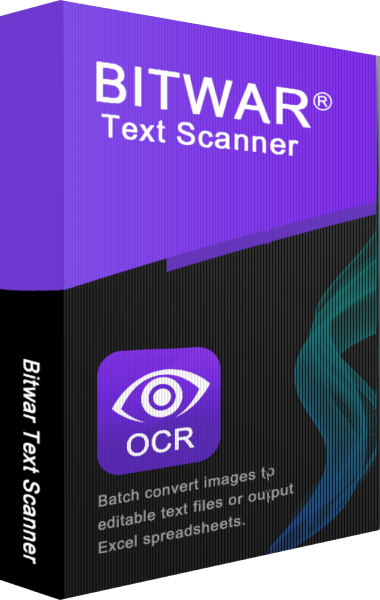
Bitwar Text Scanner
Recognize text in images and screenshots, convert tables to Excel and create editable Word documents.
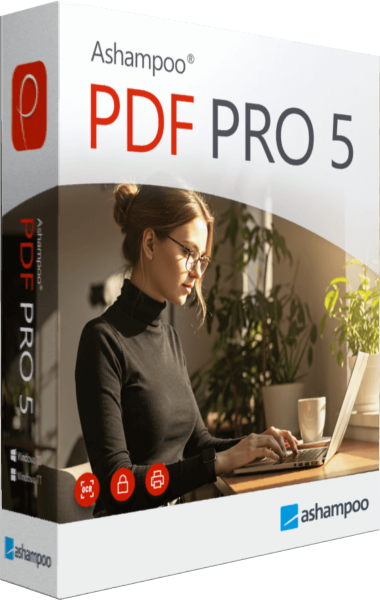
Ashampoo PDF Pro
Edit PDF text and images, organize pages, convert documents and recognize scanned text with OCR.