Product comparison
iolo Updater vs Nero TuneItUp PRO
Both products cover supported application and driver updates, but Nero adds several Windows configuration tasks. Choose around the work you actually need to perform: installing a supported update and changing startup, services or energy settings are separate maintenance decisions.
Compare update workflows
| Task | iolo Updater | Nero TuneItUp PRO |
|---|---|---|
| Update scope | Supported Windows applications and device drivers | Supported software programs and hardware drivers |
| Manual review | Select recommended updates individually | Inspect the available update recommendations in the installed release |
| Scheduling | Scheduled scans and downloads are documented | Verify the timing and unattended options available for the specific update task |
| Driver recovery | Driver backup and restore controls | Confirm the available recovery controls before relying on an automated update |
| Windows configuration | Update-focused workflow in this comparison | Startup management, selected service controls and Windows settings |
| Additional tasks | Separate maintenance tools are outside the updater scope | Web-settings analysis and energy-saving configuration |
Which workflow fits?
Consider iolo when updates are the main task
iolo Updater brings application and driver recommendations into one workflow, with manual selection, scheduling and ignore lists. Check the driver backup before installing replacements, and keep required application versions excluded until you have reviewed compatibility.
Consider Nero when you also need configuration controls
Nero TuneItUp PRO adds startup, Windows service, web and energy settings around its driver and software updates. Those controls may suit a broader maintenance session, but they should be selected for a specific purpose.
Begin with one type of change. If you install drivers and alter startup or services together, a later difference in behavior is harder to trace. A feature overview that mentions updates does not establish identical scheduling or rollback options to iolo; check the installed release.
Check the result of an update
- List the updates you need separately from startup, service and energy-setting changes.
- Inspect the proposed application and driver versions and preserve an appropriate recovery option.
- Apply a small, identifiable set of changes and test the affected programs or devices.
- Review configuration adjustments separately and keep a record of settings needed to reverse them.
We have not measured speed, energy use or detection quality. Neither a newer driver nor a tuning setting guarantees an improvement for every workload.
Compared products
The Nero selection covers the current TuneItUp PRO edition. Check the installed release for the specific update and recovery controls.
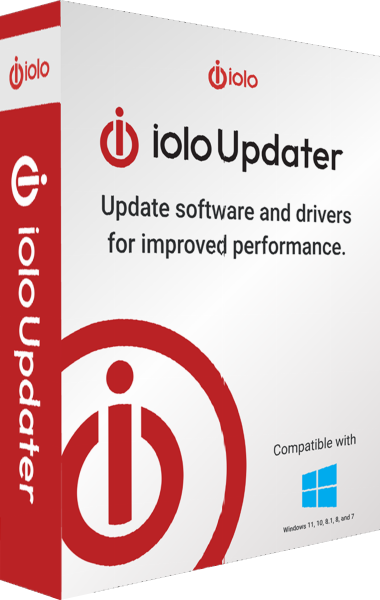
iolo Updater
Check Windows applications and device drivers for updates, schedule maintenance and back up drivers before changes.

Nero TuneItUp PRO
Review startup programs, adjust Windows settings, and manage driver and application updates.