Product comparison
iolo Updater vs Auslogics Driver Updater
Both products offer driver recommendations, selection controls and recovery tools. The main scope difference is that iolo also updates supported applications. For the driver stage, compare the detected device, the proposed replacement and the way you can defer or reverse a change.
Compare update workflows
| Task | iolo Updater | Auslogics Driver Updater |
|---|---|---|
| Update scope | Supported applications and hardware drivers | Windows device drivers |
| Recommendation review | Review proposed drivers alongside the application list | Installed and recommended driver details with hardware matching |
| Manual selection | Select individual updates; check active-edition batch controls | Individual updates with multiple-driver convenience depending on edition |
| Exclusions | Separate program and driver Ignore Lists | Driver Ignore List with later review in settings |
| Recovery | Back up drivers and restore a saved version | Driver backup and restore tools |
| Unattended work | Scheduled scans and downloads | Check the selected edition for scheduled scans and automatic or batch workflow |
Which workflow fits?
Consider iolo for application and driver coverage together
iolo Updater is a candidate when you intend to maintain both categories in one tool. Use the separate ignore lists to record recommendations you are deferring, and revisit exclusions when the compatibility requirement changes.
Consider Auslogics for a hardware-focused update review
Auslogics Driver Updater presents installed and recommended driver details, backup and restore tools, and an Ignore List. Compare the actual hardware identified rather than inferring accuracy from a database-size claim.
Check edition limits before planning batch updates or scheduled scans. A successful scan is different from an installed update, and an installed update still needs a device check. If you already manage a specialized driver separately, record why it is excluded.
Check the result of an update
- Review the exact device and proposed version, including any guidance for the computer or peripheral model.
- Verify edition coverage for the manual, batch or scheduled workflow you intend to use.
- Preserve a useful driver backup and inspect exclusions before installing the selected replacements.
- Test the affected devices and applications after restarting, then revisit any deferred recommendation deliberately.
We have not benchmarked hardware matching or update reliability. A newer release is not proof that it will solve an unrelated device or application problem.
Compared products
The listings do not fix release numbers. Confirm the installed versions and edition entitlements before relying on scheduling or batch updating.
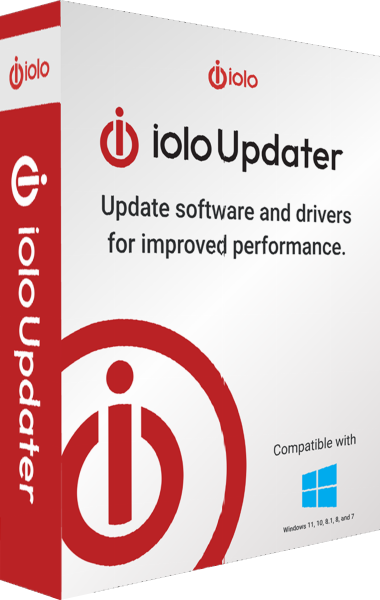
iolo Updater
Check Windows applications and device drivers for updates, schedule maintenance and back up drivers before changes.
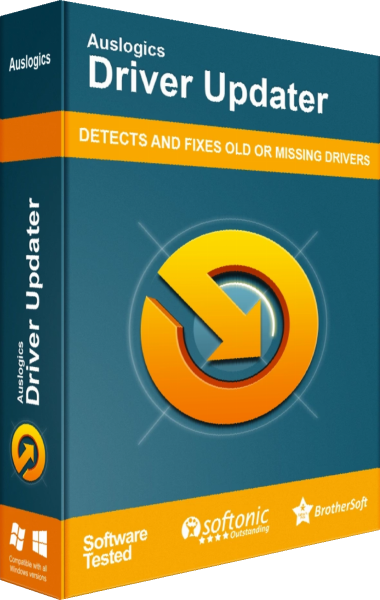
Auslogics Driver Updater
Scan Windows device drivers and review updates with backup and restore tools.