Product comparison
iolo System Mechanic vs Auslogics BoostSpeed
Both applications group Windows cleanup and optimization tasks. System Mechanic emphasizes ActiveCare, resource settings and maintenance history. BoostSpeed adds task-specific storage tools, optimization modes and Rescue Center for supported operation backups. Compare the controls and recovery options relevant to the changes you intend to make.
Compare included tools
| Task | iolo System Mechanic | Auslogics BoostSpeed |
|---|---|---|
| Cleanup | DeepClean and unnecessary-file cleanup | Windows cleanup with tools such as Disk Explorer and Windows Slimmer |
| Optimization approach | LiveBoost resource controls and NetBooster connection settings | Workload-based optimization modes and system-setting tools |
| Automatic work | Smart ActiveCare maintenance while idle | Scheduling and automatic functions depend on edition and installed tools |
| Storage tasks | Review the resource and storage controls available in the installed release | Separate HDD and SSD maintenance workflows |
| Browser data | Local browsing-data cleanup | Privacy-trace and browser-related controls |
| Reviewing changes | Maintenance history and event details | Rescue Center for backups of supported operations |
Which workflow fits?
Consider System Mechanic for ActiveCare and maintenance history
iolo System Mechanic provides a configurable maintenance routine and a history of recent activity. Use the history to connect an observed change with what ran, then assess resource or connection settings with a repeatable task.
Consider BoostSpeed for task-specific maintenance tools
Auslogics BoostSpeed includes storage-analysis and cleanup utilities alongside optimization modes. Choose a workflow that matches the storage type; HDD and SSD tasks should not be treated as interchangeable merely because they appear in the same suite.
Rescue Center applies to supported operations, so inspect which changes have backups before proceeding. A maintenance log records activity, while an operation backup may allow a specific change to be reversed. Neither provides a substitute for independent copies of your files or a prepared system-recovery plan.
Edition scope and practical checks
Both product entries are unnumbered. BoostSpeed editions can differ in advanced tools and scheduling, so verify the selected offer and installed controls. A bundled utility or backup entry should not be assumed to cover every possible operation.
- Identify the actual task, storage type and application behavior you want to assess.
- Inspect proposed file removals, optimization settings and edition-dependent automation.
- Check the available operation backup or recovery method before applying a substantial setting change.
- Repeat the same workload afterward and review the relevant maintenance log or supported rollback record.
We have not benchmarked cleanup accuracy or performance on identical installations. Compare competing tools from equivalent restored starting states, since running one changes the starting point for the next. Issue counts and removed-file totals do not establish a faster PC.
Compared products
Review the selected catalog editions and confirm the components enabled by your own license.
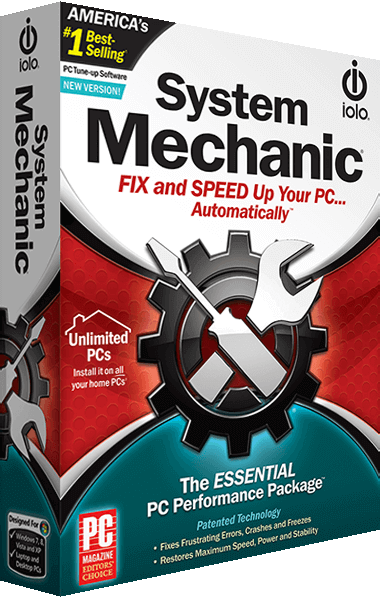
iolo System Mechanic
Clean unnecessary Windows files, review startup programs and configure automated maintenance and performance controls.
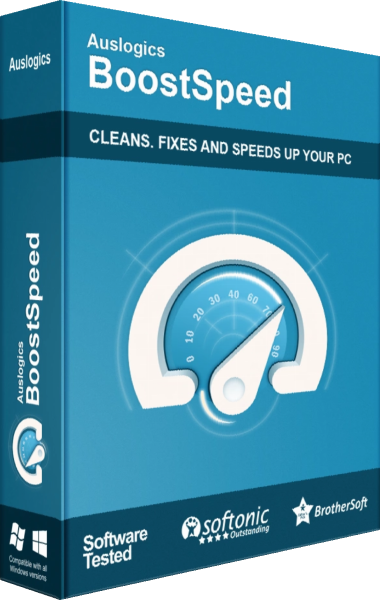
Auslogics BoostSpeed
Review Windows cleanup, optimization settings, and storage-maintenance tasks.
Explore more
- Ashampoo WinOptimizer Pro 29 vs iolo System Mechanic
- iolo System Mechanic vs IObit Advanced SystemCare Pro
- iolo System Mechanic vs AVG TuneUp
- iolo System Mechanic vs CCleaner Professional
- iolo System Mechanic vs Nero TuneItUp PRO 2026
- iolo System Mechanic vs Professional vs Ultimate Defense
- Explore PC optimization software
- Prepare independent file backups