Product comparison
WinZip System Utilities Suite vs Ashampoo WinOptimizer Pro 29
Both suites combine several Windows maintenance tasks. WinZip includes hardware-driver updating and backups alongside cleanup and troubleshooting. WinOptimizer Pro 29 adds supported application updates, detailed privacy settings and separate analysis modules. Hardware drivers and application updates are different workflows.
Compare maintenance workflows
| Task | WinZip System Utilities Suite | Ashampoo WinOptimizer Pro 29 |
|---|---|---|
| Cleanup | Review junk files, privacy traces and application leftovers | Drive Cleaner, Internet Cleaner and Privacy Traces Cleaner |
| Storage review | Disk Explorer and Duplicates Finder | DiskSpace Explorer and Duplicate Finder |
| Update focus | Device-driver updates and driver backups | Software Updater for supported applications, including batch updates |
| Startup and processes | Startup program and service controls; Process Library | Startup Tuner, Boot Center and Process Manager |
| System inspection | System Info and blue-screen code lookup through Crash Helper | System Information 2 and Crash Analyzer |
| Recovery controls | Restore saved registry and driver changes | Backup Manager for supported changes; inspect coverage per task |
Which workflow fits?
Consider WinZip for driver maintenance and troubleshooting
WinZip System Utilities Suite suits a routine combining cleanup, startup review and device-driver work. Driver Backup can save selected or all current drivers. Restore handles supported registry and driver changes, while Crash Helper provides a lookup for blue-screen codes.
Consider WinOptimizer for application updates and module-based maintenance
Ashampoo WinOptimizer Pro 29 fits a routine spanning temporary-file cleanup, startup analysis, Windows privacy settings and supported software updates. Choose the module that matches the task and inspect its settings. Its application updater should be assessed separately from a hardware-driver updater.
Compare the backup available for the particular action, not just the presence of a recovery module. Keep file deletion, configuration changes and software installation as separate decisions so you can identify their effects.
Check the selected controls
- Decide whether the update task concerns a device driver or an installed application.
- Review matching cleanup categories and retained browser data before deletion.
- Inspect the selected startup or analysis module and its proposed changes.
- Apply one task and check the available history, recovery options and normal workflow.
Keep independent copies of important files before substantial cleanup. Apply a focused change and test the affected workflow. A scan count does not measure a speed improvement, and a registry or driver backup is not a backup of personal documents.
Compared products
Review the selected catalog products and the controls available in the edition you intend to use.
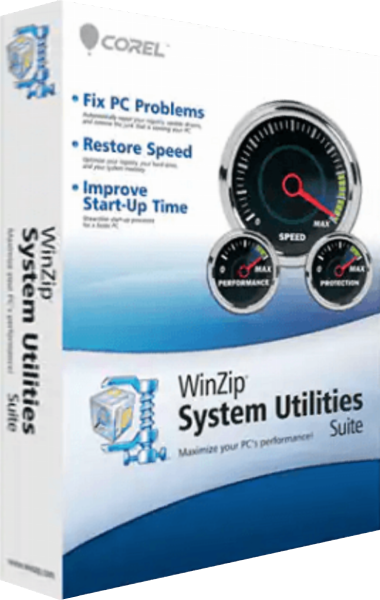
WinZip System Utilities Suite
Clean up Windows, manage drivers and startup items, inspect disk usage and troubleshoot problems with a combined maintenance toolkit.
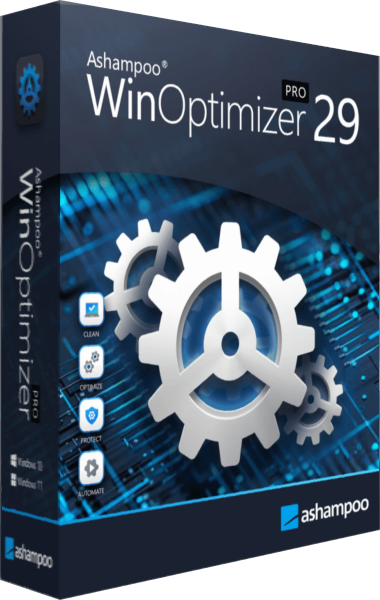
Ashampoo WinOptimizer Pro
Review Windows maintenance tasks with cleanup tools, software updates, startup controls and system analysis.
Explore more
- WinZip System Utilities Suite vs ReviverSoft PC Reviver
- WinZip System Utilities Suite vs Auslogics BoostSpeed
- WinZip System Utilities Suite vs IObit Advanced SystemCare Pro
- WinZip System Utilities Suite vs iolo System Mechanic
- WinZip System Utilities Suite vs CCleaner Professional
- PC maintenance and optimization overview
- Driver updater software overview
- Keep independent copies of important files