Product comparison
WinZip System Utilities Suite vs iolo System Mechanic
WinZip combines driver tools, cleanup and troubleshooting with a scan scheduler. The standard System Mechanic edition focuses on cleanup, startup review and performance controls, with Smart ActiveCare handling maintenance while the PC is idle. Compare the routine each product supports rather than assuming every component in the iolo family is included.
Compare maintenance workflows
| Task | WinZip System Utilities Suite | iolo System Mechanic |
|---|---|---|
| Cleanup | Application leftovers, junk files and privacy traces | DeepClean and Windows or browsing-data cleanup |
| Startup programs | Enable or disable startup programs and services | Review unwanted startup programs and potentially unwanted applications |
| Automatic maintenance | Configure a one-time, daily or weekly scan-and-repair schedule | Smart ActiveCare performs selected maintenance while the PC is idle |
| Reviewing activity | Review repair findings and saved registry or driver backups | Maintenance history with details for individual events |
| Resource tuning | Use startup controls and system information for investigation | LiveBoost controls CPU, memory and storage resources |
| Additional focus | Device-driver backups, updates and Crash Helper | NetBooster adjusts Windows Internet-connection settings |
Which workflow fits?
Consider WinZip for driver maintenance and troubleshooting
WinZip System Utilities Suite suits a routine combining cleanup, startup review and device-driver work. Driver Backup can save selected or all current drivers. Restore handles supported registry and driver changes, while Crash Helper provides a lookup for blue-screen codes.
Consider System Mechanic for idle maintenance and resource controls
iolo System Mechanic is relevant when you want to configure idle maintenance, inspect its history and review resource or connection settings. Keep Smart ActiveCare tasks aligned with the files and browser data you intend to retain, and evaluate LiveBoost using your normal workload.
This comparison covers standard System Mechanic. Do not transfer antivirus, dedicated password-management or data-recovery claims from Professional or Ultimate Defense. Connection tuning also does not increase the bandwidth supplied by an Internet provider.
Check the selected controls
- Review the activated edition and the maintenance tasks it exposes.
- Compare selected cleanup categories and startup entries before changing them.
- Configure idle maintenance and inspect the first event in the activity history.
- Test the same application or connection task before and after a resource-setting change.
Keep independent copies of important files before substantial cleanup. Apply a focused change and test the affected workflow. A scan count does not measure a speed improvement, and a registry or driver backup is not a backup of personal documents.
Compared products
Review the selected catalog products and the controls available in the edition you intend to use.
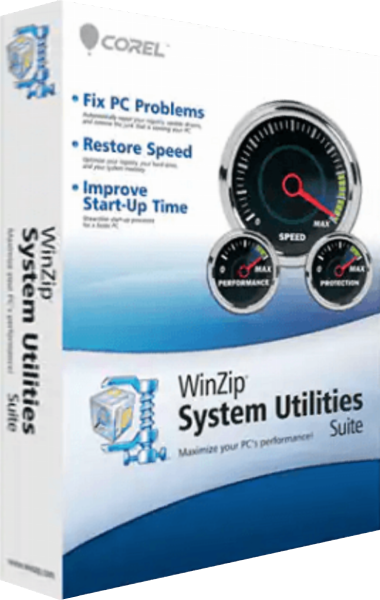
WinZip System Utilities Suite
Clean up Windows, manage drivers and startup items, inspect disk usage and troubleshoot problems with a combined maintenance toolkit.
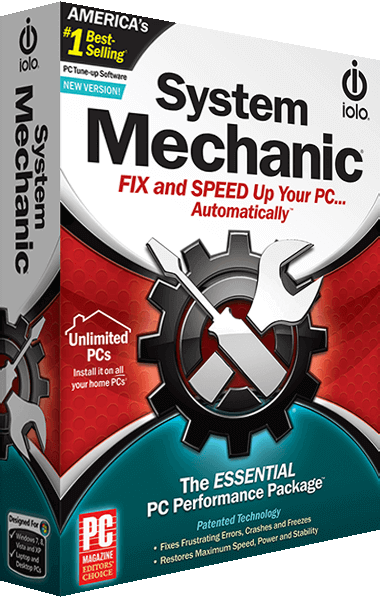
iolo System Mechanic
Clean unnecessary Windows files, review startup programs and configure automated maintenance and performance controls.
Explore more
- WinZip System Utilities Suite vs ReviverSoft PC Reviver
- WinZip System Utilities Suite vs Ashampoo WinOptimizer Pro 29
- WinZip System Utilities Suite vs Auslogics BoostSpeed
- WinZip System Utilities Suite vs IObit Advanced SystemCare Pro
- WinZip System Utilities Suite vs CCleaner Professional
- PC maintenance and optimization overview
- Driver updater software overview
- Keep independent copies of important files