Product comparison
Laplink SafeErase vs iolo DriveScrubber
Both products address deliberate data removal, but their documented task scopes differ. Laplink SafeErase covers selected files, free space and broader storage targets. DriveScrubber focuses on erasing selected drives, including a system drive through bootable media.
Feature comparison
| Task | Laplink SafeErase | iolo DriveScrubber |
|---|---|---|
| Selection scope | Files, folders, free space, partitions and drives | Contents of selected drives |
| Free-space cleaning | A documented task; verify the installed release and storage guidance | Free Space Wipe has been removed by iolo |
| System-drive erasure | Entire-computer deletion workflow | Bootable-media workflow outside the installed Windows environment |
| Secondary storage | Partition and drive deletion tasks | Non-system-drive wiping workflow |
| Repeated selections | Saved deletion lists and profiles | Review the drive selection for each wiping task |
| Operation review | Deletion reports | Inspect the wiping task's completion information |
Free space and system-drive wiping
iolo states that it removed Free Space Wipe because of data-safety concerns. Older descriptions of keeping the operating system and existing files while wiping unused space should not be treated as an available current DriveScrubber function.
A whole-drive wipe is a different operation and cannot substitute for that removed feature when you intend to retain the drive's active contents. A complete system-drive wipe removes Windows, applications and data on the selected target.
DriveScrubber's documented USB workflow prepares a bootable wiping environment. Creating it formats the selected USB, so preserve that USB's needed contents separately and distinguish the USB creation target from the drive to be erased afterward.
Which workflow fits?
Consider Laplink SafeErase when the job requires selecting files or folders, reviewing local browser-data categories or reusing a saved deletion list. Match the operation to the data you intend to remove.
Consider DriveScrubber when the goal is to erase a selected drive completely or prepare a bootable system-drive wiping workflow. Decide how the drive will be used afterward, including any separate operating-system installation or recovery process.
Neither catalog entry specifies a release number. Check the installed build and supported device guidance, especially for SSDs. An overwrite count or a successful start does not independently establish complete coverage of every storage location.
Review Laplink SafeErase and iolo DriveScrubber for the compared catalog entries.
Review the selected task
- Define whether selected files, unused space or an entire drive must be removed.
- Use disposable test material or a spare device to inspect the workflow and target selection.
- For bootable wiping, confirm both the USB preparation target and the intended drive visible in the boot environment.
- Review completion results and preserve needed documents and records on an independent destination.
This comparison describes documented operations, not measured erasure speed or independently verified sanitization coverage. Treat erasure as permanent. Separate backup archives, cloud accounts and other devices remain outside the selected local operation.
Compared products
Cards identify the compared catalog entries. Check the installed release and edition.
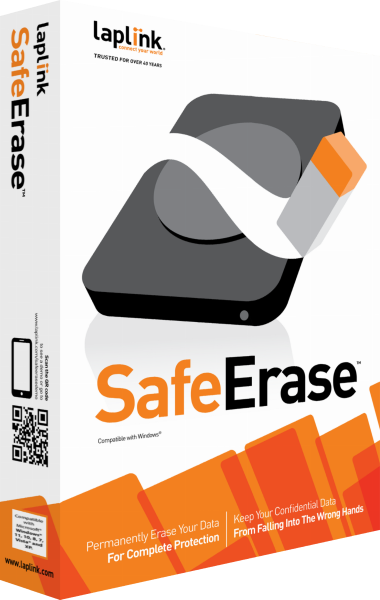
Laplink SafeErase
Remove selected local files or erase storage with configurable deletion tasks, saved selections and operation reports.
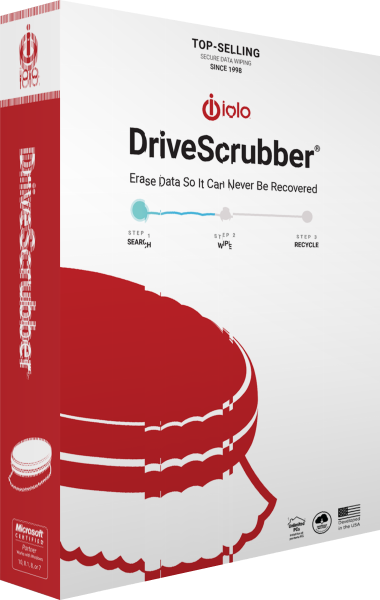
iolo DriveScrubber
Erase selected drives and prepare a bootable workflow for system-drive wiping before storage reuse or handover.
Related comparisons and guides
- iolo DriveScrubber vs O&O SafeErase 21
- iolo DriveScrubber vs CCleaner Professional
- iolo DriveScrubber vs O&O FileErase
- Laplink SafeErase vs O&O SafeErase 21
- Laplink SafeErase vs CCleaner Professional
- Laplink SafeErase vs O&O FileErase
- Preserve needed files before erasing storage
- Explore Laplink DiskImage for backup and recovery