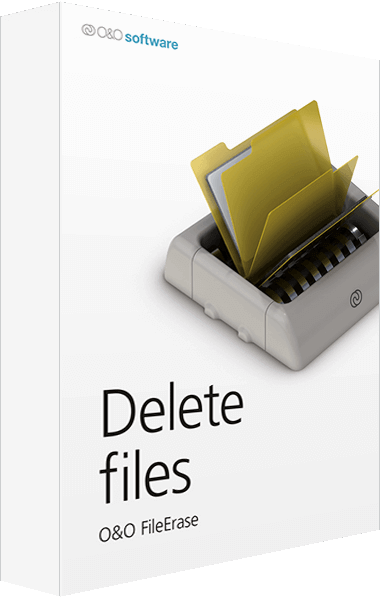
Product comparison
Laplink SafeErase vs O&O FileErase
O&O FileErase is retained here as an archived reference for deleting selected files and folders. Laplink SafeErase describes a broader range of erasure tasks, so this comparison explains scope rather than presenting FileErase as a current purchase alternative.
Feature comparison
| Task | Laplink SafeErase | O&O FileErase |
|---|---|---|
| Selected files | File and folder deletion tasks | File and folder selection for deletion |
| Selection workflow | Saved lists and profiles for repeated targets | Add files or folders and review the selection |
| Deletion method | Selectable methods for supported operations | Choose a deletion method after selecting files |
| Free space and drives | Dedicated free-space, partition and drive tasks | The compared FileErase workflow focuses on selected files and folders |
| Local traces | Browser, temporary-data and Recycle Bin tasks | Do not infer a complete browser-cleanup workflow from file deletion |
| Product status | Check the installed Laplink release; version is not specified in the entry | Archived catalog entry retained for reference |
Version and storage scope
The Laplink catalog entry and current product overview do not specify a release number. Confirm the installed build and its supported methods, especially for SSDs, before attributing a feature from another SafeErase product or a different generation.
A selected-file task, free-space cleaning and whole-drive erasure cover different targets. Local erasure does not automatically remove independent copies in backups, cloud accounts or other devices. Reports describe the attempted operation and its results, not every possible copy of the data.
Selected-file deletion or a wider erasure plan?
For an existing FileErase installation, assess its documented file-and-folder workflow against the actual requirement. Review the selected paths and method rather than assuming that deleting a folder is the same operation as clearing free space or retiring a complete disk.
Laplink is relevant when the task also needs partition, drive, free-space or local-trace deletion. Its saved selections can help repeat tasks, but paths and categories still need review when applications or folders change.
For another current dedicated erasure entry in the catalog, review O&O SafeErase 21. Features described for that product should not be transferred automatically to the older FileErase application.
Review Laplink SafeErase and O&O FileErase for the compared catalog entries.
Check the deletion scope before comparing methods
- Identify which items must be removed and which must remain.
- Use disposable files to review how each application builds and confirms its selection.
- Keep separate backups and cloud copies in view when defining the intended deletion scope.
- Review the operation result without relying on later recovery to reverse a permanent deletion.
This comparison describes documented functions and their scope. We have not benchmarked erasure speed or independently verified sanitization coverage. Treat erasure as permanent and preserve anything needed on an independent destination before confirming the operation.
Compared products
Cards identify the compared catalog entries. Check the installed release and edition.
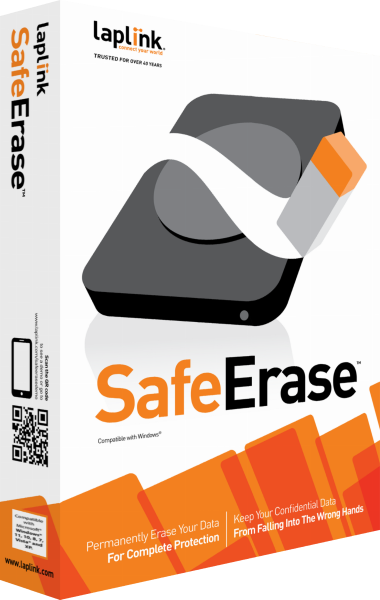
Laplink SafeErase
Remove selected local files or erase storage with configurable deletion tasks, saved selections and operation reports.